
Appearance
VPN
Your Kubernetes cluster is not accessible to the internet. If you want to deploy and manage applications in your cluster, you need to use the VPN. Each Fed4FIRE user gets an individual VPN configuration. Do not share this config with other users.
Note: each cluster has an internal and external network. The VPN gives you access to the external network of the cluster. Pods running inside of Kubernetes are only accessible from the internal network by default.
You can download the VPN config file from the CloudNativeLab user interface. After downloading the config file, follow these tutorials to connect your computer to the VPN.
Connect an Ubuntu Desktop
First, you need to install OpenVPN support:
sudo apt install network-manager-openvpn-gnomeAfter adding this, reboot your computer. After rebooting, you can add the VPN using Settings.
- Open the
Settingsapp. - Go to the
Networktab and click on the+symbol nex to "VPN".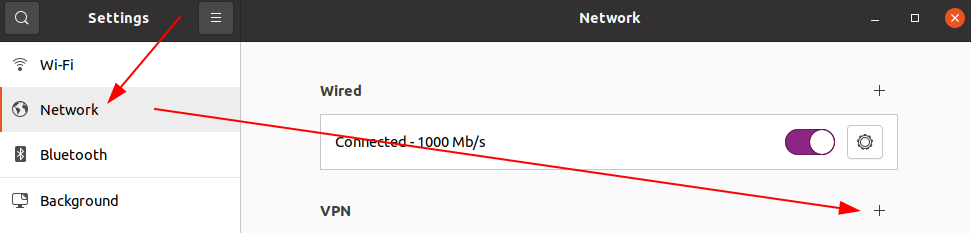
- Choose
Import from file...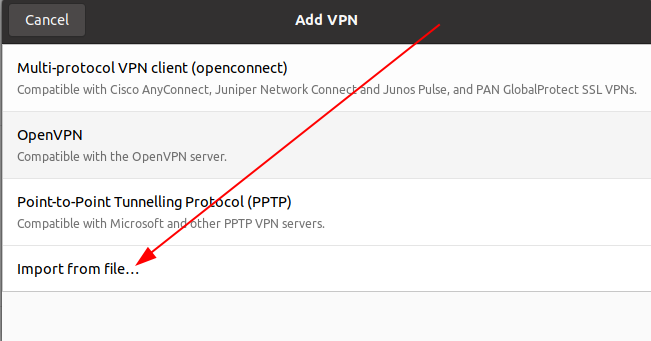
- Choose the config file you just downloaded.
- Go to the IPv4 tab and enable the check box
Use this connection only for resources on its network.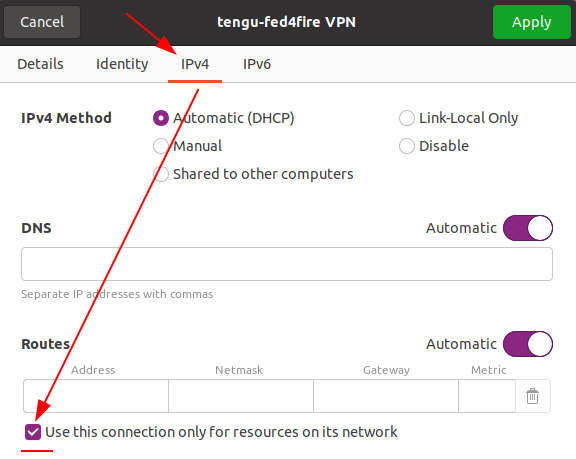
- Click
Addto add the VPN.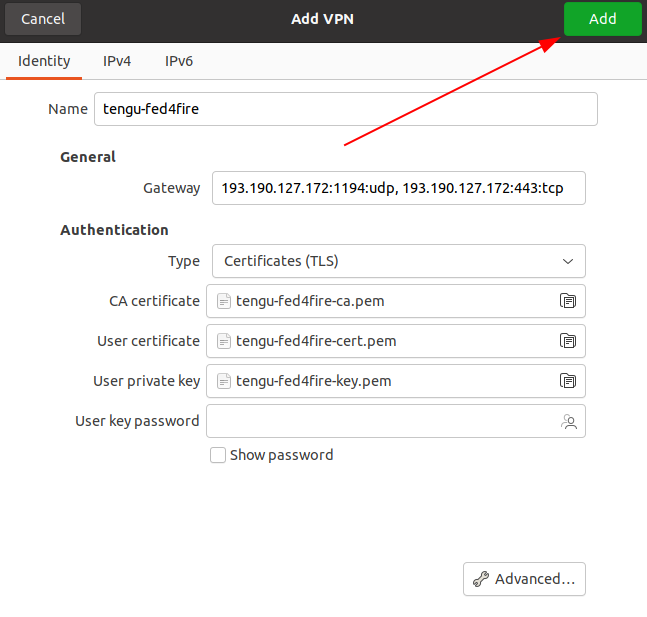 After adding the VPN, you can start it either from this Settings panel or by clicking on the applet in the top-right corner of your screen and enabling the VPN from the slide-down menu.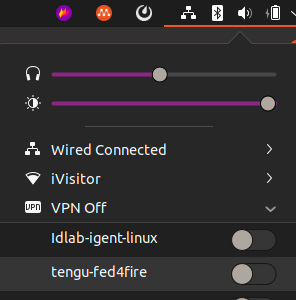
Connect an Ubuntu Server
Use the following instructions to connect an Ubuntu server to the VPN. Replace <client-name>.openvpn with the name of the config file you downloaded.
sudo apt install openvpn
sudo openvpn --config <client-name>.ovpn
# Use the following command if you want to use the DNS settings that the OpenVPN server pushes
sudo openvpn --config <client-name>.ovpn --script-security 2 --up /etc/openvpn/update-resolv-conf --down /etc/openvpn/update-resolv-conf
Connect a Windows Desktop
- Install OpenVPN Connect Client for Windows: https://openvpn.net/client-connect-vpn-for-windows/
- Start the program.
- Choose to import a profile from a file.
- Choose the file you just downloaded.
- Start the VPN.
Connect a macOS Desktop
- Install OpenVPN Connect Client for macOS: https://openvpn.net/client-connect-vpn-for-mac-os/
- Start the program.
- Choose to import a profile from a file.
- Choose the file you just downloaded.
- Start the VPN.