
Appearance
XNL Apps
Installing Apps
Apps can be installed on existing clusters or a new cluster can be requested.
Installing on a new cluster
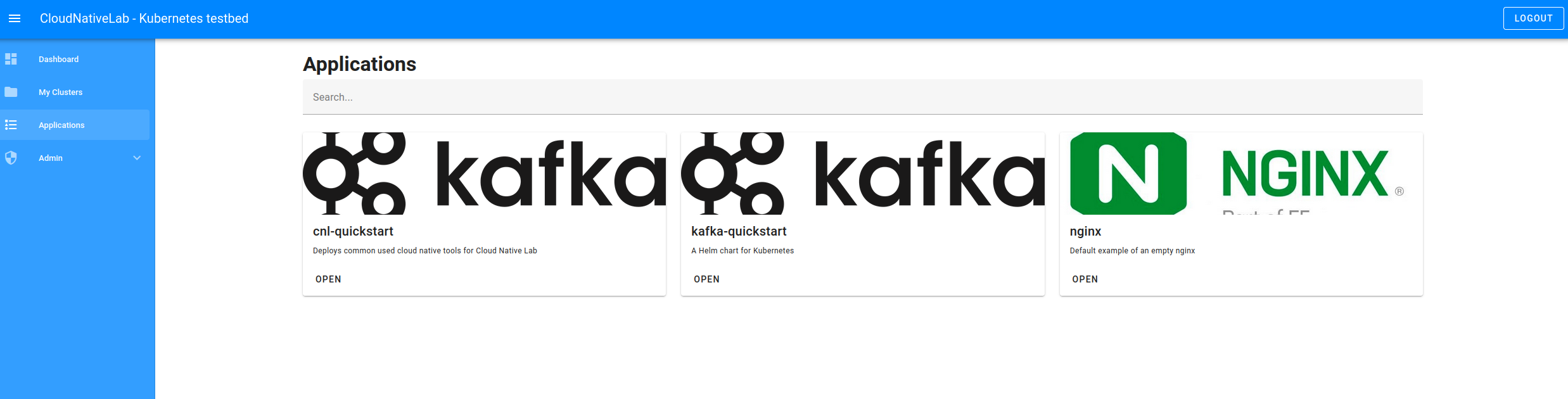
If you want to create a new cluster with the app, navigate to the Applications sidebar item. There you will find a list of available apps which can be installed on a cluster.
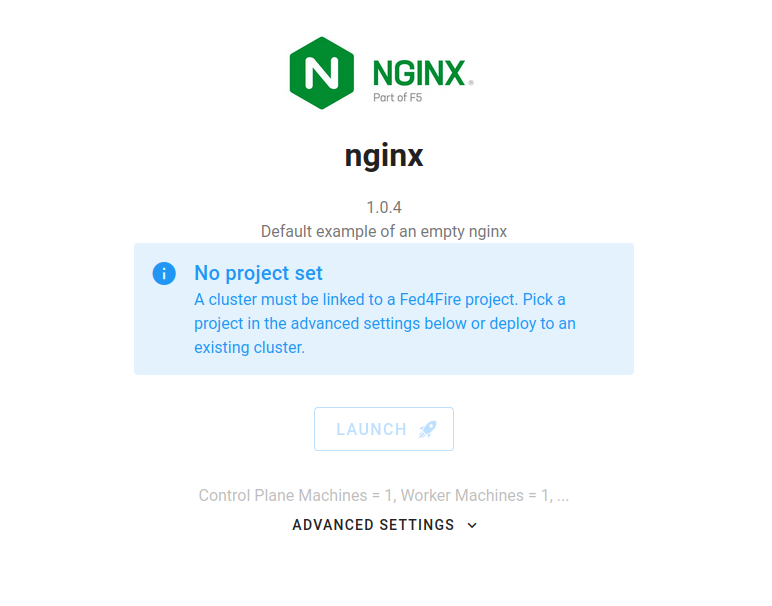
After selecting an app you will receive the following warning informing you that you are about to create a new cluster and it needs to be linked to a Fed4Fire project.
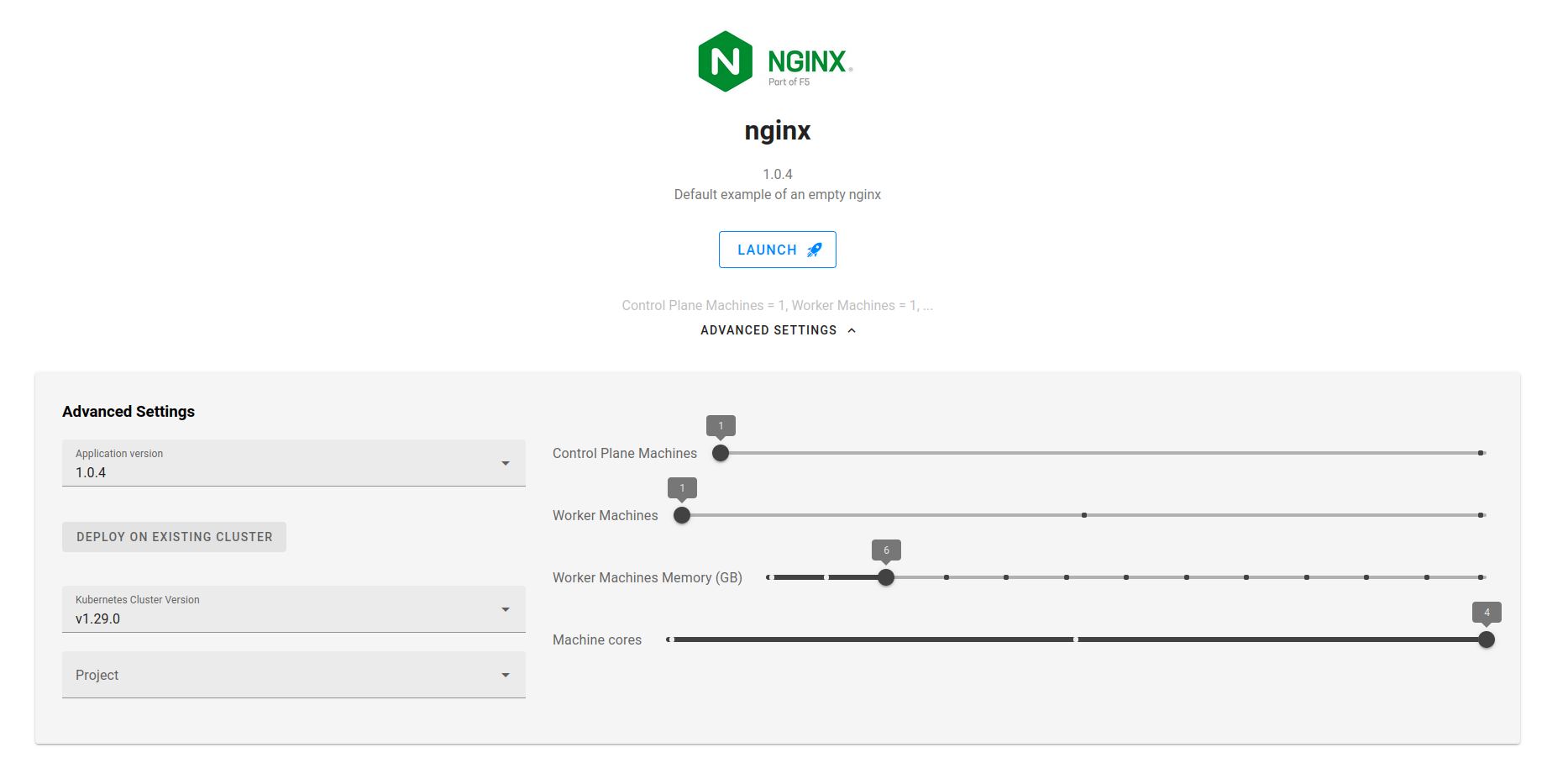
In the settings you can set the project and change some cluster settings as well as the app version. If needed you can also choose to deploy to an existing cluster.
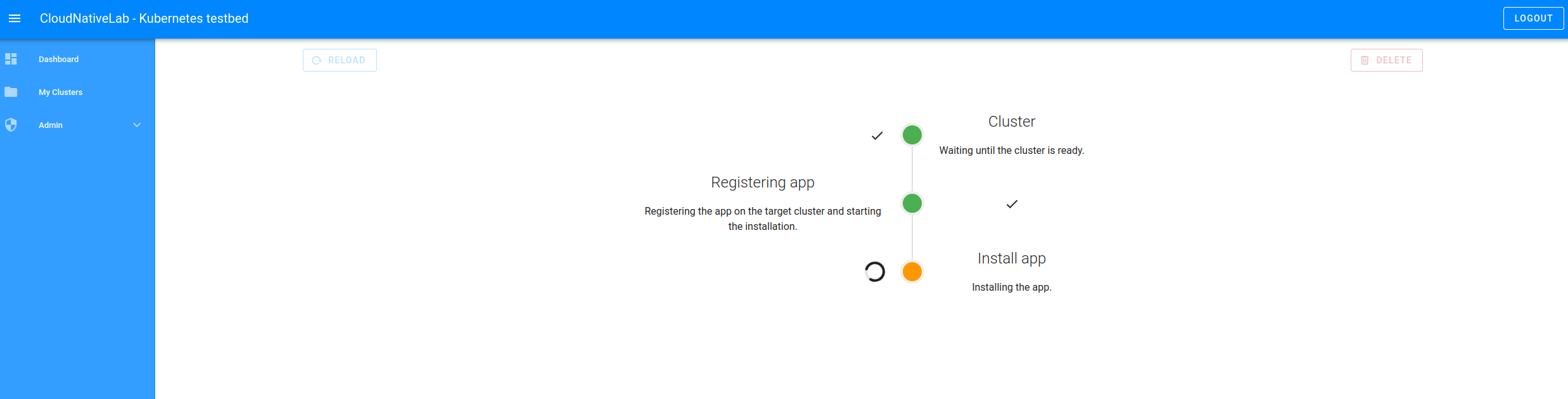
When launched the deployment process starts, first the cluster will be created (this usually takes about 5 minutes). Then the app is registered in our system to be deployed and finally the app components are deployed on the cluster. Depending on the size of the app this can take some time.
When the app is installed you will receive a post install screen with the app's health and post install instructions to help you get started.
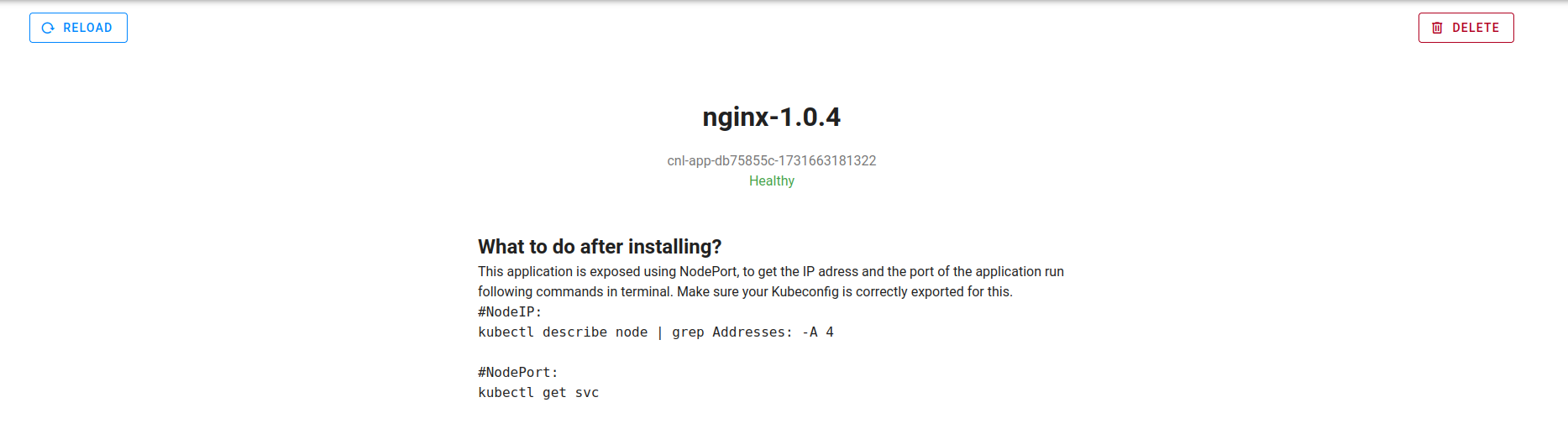
You can find your installed apps by navigating to Manage clusters, selecting the cluster and opening the applications tab. The newly created cluster's name will start with the app name following a number of digits.

Installing on an existing cluster
If you already have a cluster you can install an app by navigating to Manage clusters, selecting the cluster and opening the applications tab. There will be a + button which will direct you to the application installation page and will prepare the app settings for that specific cluster.
Installing multiple apps
You can install multiple apps on a cluster. However some apps might not work nicely together. For example the cnl-quickstart chart installs a Kafka cluster inside the kafka namespace and the kafka-quickstart app will want to do the same.
Deleting an app
You can delete an app by navigating to Manage clusters, selecting the cluster and opening the applications tab. Select the app you want to delete and click the open button. This will direct you to the app status page which has a delete button.